
5 Step Accountant Checks: Stripe Payout Reconciliation, Reports & API

Use Stripe’s Payout reconciliation report for automatic payouts, or treat Stripe as a clearing account with the Balance report for manual payout setups. Match each payout by confirming that total net activity assigned to it, gross minus fees and refunds, equals the deposit hitting your bank account. Automate the process with the payout.paid and payout.reconciliation_completed webhooks so your system pulls itemized data the moment it’s ready.
TL;DR:
- Manual payouts may lack transaction-level detail, making precise reconciliation difficult if Stripe cannot determine which transactions are included.
- Always verify that the total net activity assigned to a payout matches the bank deposit, considering timing delays, refunds, and unexpected fees.
- Use the Payout reconciliation report in Stripe’s dashboard or API, focusing on gross, fee, and net amounts, and cross-referencing report categories for faster error identification.
- Automate webhook handling for payout events and fetch itemized data after the reconciliation completed event to ensure report completeness and prevent duplication.
- For low-volume studios, weekly reconciliation with a dedicated Stripe clearing account simplifies error tracking and improves accuracy, especially when combined with metadata and external receipts.
Table of Contents
- What the Payout reconciliation report is and when to use it
- How to access and download the data you need
- Step-by-step reconciliation workflow you can follow today
- Common reconciliation mismatches and how to troubleshoot them
- Automation and best practices for reconciliation
- Quick reference: fields and report types you will rely on
- [A practical take on reconciling payouts for small studios, similar to how gyms benefit from optimized operational content for reconciliation workflows.](#a-practical-take-on-reconciling-payouts-for-small-studios-similar-to-how-gyms-benefit-from-optimized-operational-content-for-reconciliation-workflowshttpsvo2wodcom)
- An integrated approach to studio billing and reconciliation
- FAQ
- Sources
What the Payout reconciliation report is and when to use it
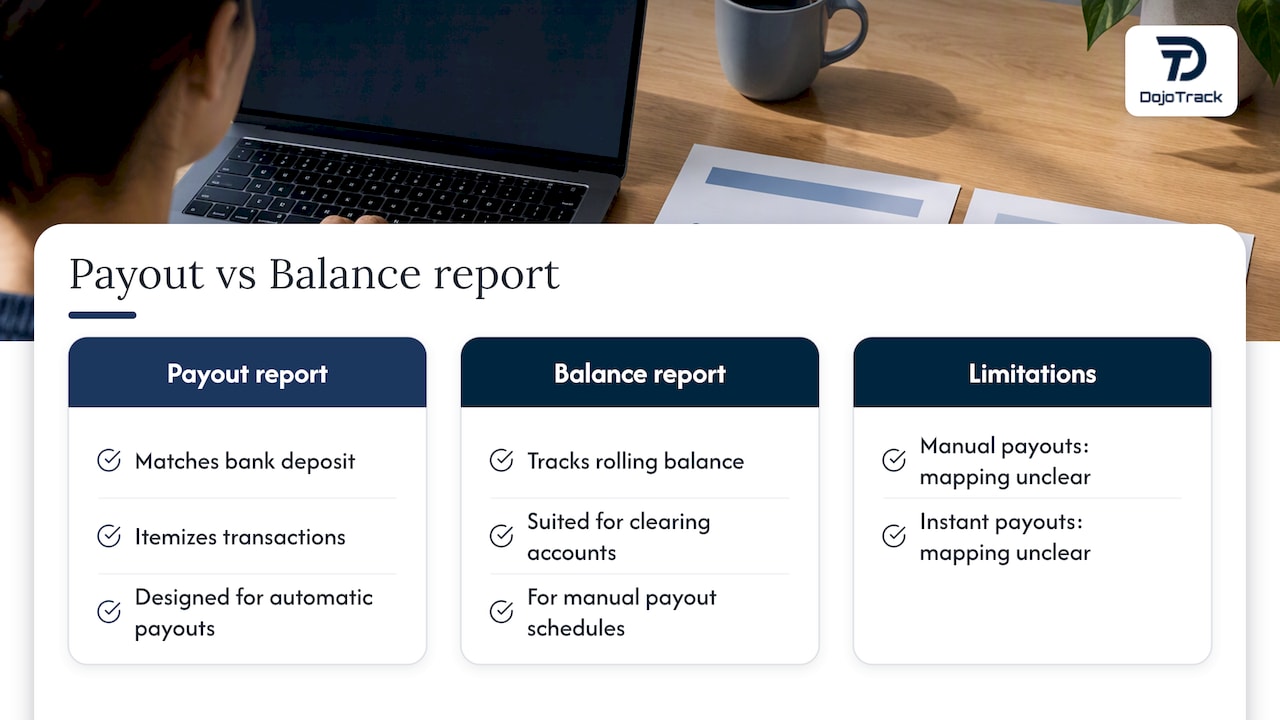
The Payout reconciliation report matches a bank deposit to the exact batch of Stripe transactions bundled into that payout. Every charge, refund, fee, and adjustment included gets itemized, so you can see precisely what built the number landing in your account. Stripe designed this report around automatic payouts, where the platform groups activity on a schedule and sends one net amount per batch.
If you run Stripe as a clearing account, routing funds through an intermediate ledger before they settle, the Balance report fits better. It tracks the rolling balance itself rather than payout batches, which suits manual payout schedules where you decide when money moves.
There’s a real limitation here: instant payouts and manual payouts don’t come with guaranteed transaction-level mapping. Stripe’s own guidance warns that for manual payouts, you choose the amount, and Stripe can’t always determine which transactions were included. Keep that in mind before you build a reconciliation process that assumes every payout traces cleanly.
How to access and download the data you need
In the Dashboard, open any individual payout and look for the Payout reconciliation section. From there you can download either a summary CSV (totals by category) or an itemized CSV (line-by-line transaction detail), depending on how deep you need to go.
For a repeatable process, the Reporting API is faster. Request payout_reconciliation.summary for a quick balance check, or payout_reconciliation.by_id.itemized when you need every transaction tied to a specific payout. Both accept a payout or interval parameter to scope the request.
Whichever method you use, pull these columns every time:
- Gross, fee, and net: the three numbers that explain the deposit amount.
- Reporting_category: groups transactions by type (charge, refund, adjustment) so mismatches are easier to isolate.
- Automatic_payout_effective_at and automatic_payout_id: ties the batch to a specific payout for audit trail purposes.
- Payout_expected_arrival_date: the date Stripe expects the bank to receive funds, useful for timing checks.
Step-by-step reconciliation workflow you can follow today
Reconciling a payout isn’t complicated once you have a consistent sequence. Here’s the order that keeps the process repeatable from month to month:
- Find the bank deposit in your statement and note the exact net amount and the date the bank posted it.
- Locate the matching Stripe payout using the payout ID, then export the itemized BalanceTransactions tied to that batch.
- Apply the reconciliation formula: sum the net activity assigned to the payout and confirm it equals the deposit. Group by
reporting_categoryto verify gross and fee lines add up correctly. - Post the entries to a Stripe clearing account in your books, then mark the entry cleared once the bank deposit actually posts, not when Stripe marks the payout as paid.
- If the numbers don’t match, run through the usual suspects: timing lag between Stripe’s expected arrival date and the bank’s posting date, unexpected fees, refunds processed after the payout batch closed, or a failed payout that never reached the bank at all.
This sequence matters because Stripe’s bank reconciliation documentation draws a clear line between a payout marked “paid” in Stripe and funds actually landing in your bank. Those are two different events, and treating them as the same one is where most reconciliation errors start. The documentation recommends matching on the payout amount, bank receipt date, and reconciliation status together, since amount and date alone can be fragile when two payouts land close in value or on the same day.
Common reconciliation mismatches and how to troubleshoot them
Most mismatches trace back to a short list of causes, and knowing the list in advance saves a lot of digging later.
- Timing gaps: the
payout_expected_arrival_datefrom Stripe rarely matches the bank’s actual posting date exactly, especially around weekends and holidays. - Fees and financing paydowns: network costs and Stripe fees sometimes post in a different period than the charge that generated them.
- Manual or instant payouts: these can lack transaction-level traceability entirely, making line-by-line matching impossible in some cases.
- Failed or reversed payouts: a payout that fails or gets reversed needs its own check against
payout_status, since it won’t show up as a bank deposit at all.
A payout marked “paid” in Stripe is not proof the bank received the money. Stripe’s bank reconciliation guidance treats these as separate checkpoints precisely because the gap between them is where reconciliation breaks down for many businesses.
When something doesn’t balance, pull the by-ID itemized export for that specific payout, group the line items by reporting_category, and compare the gross and fee columns side by side. Nine times out of ten, the discrepancy sits in one category, which narrows the search fast.
Automation and best practices for reconciliation
The most reliable integration pattern is event-driven rather than scheduled polling. Listen for payout.paid and payout.reconciliation_completed, then fetch itemized BalanceTransactions only after those events fire. Stripe’s API guidance recommends this exact sequence, since report availability lags behind payout creation and polling too early just returns incomplete data.
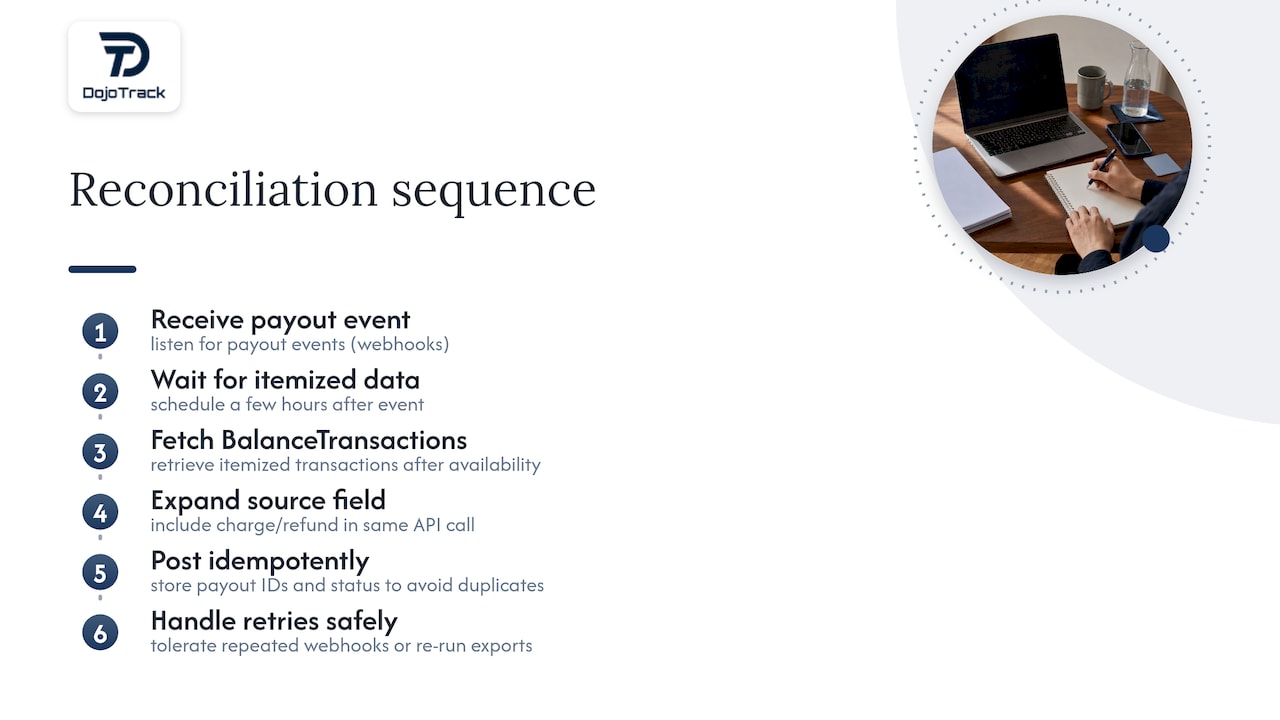
Build your fetch-and-post logic to be idempotent. Store payout IDs and their reconciliation status in your own system so a repeated webhook delivery or a re-run export never creates a duplicate ledger entry. When you need the underlying charge or refund object behind a BalanceTransaction, expand the source field in the same API call instead of making a second round trip.
Pro Tip: Schedule your reconciliation job to run a few hours after the payout.reconciliation_completed event, not immediately on payout.paid, since the itemized data isn’t always ready the instant the payout status changes.
Quick reference: fields and report types you will rely on
Four report types cover almost every reconciliation scenario: payout_reconciliation.summary for a fast balance check, payout_reconciliation.by_id.itemized for line-level detail on one payout, payouts.itemized for broader transaction history, and ending_balance_reconciliation for closing-balance checks at period end.
The fields worth memorizing:
- Automatic_payout_id: the key you use to pull every BalanceTransaction tied to one deposit.
- Net: the figure that should match your bank deposit dollar for dollar.
- Gross and fee: the two components that explain how net was calculated.
- Reporting_category and payout_status: how you group transactions and confirm the payout actually completed.
Once you have the automatic_payout_id, fetching the full transaction list and matching net to the bank deposit is mostly a formality, not a hunt.
A practical take on reconciling payouts for small studios, similar to how gyms benefit from optimized operational content for reconciliation workflows.
Weekly reconciliation beats monthly when payout volume is low, since small discrepancies are generally far easier to trace sooner rather than after a longer period. Keep a dedicated Stripe clearing account in your books rather than posting directly to revenue, and attach studio-specific metadata, like class type or membership plan, to transaction records so investigations don’t start from zero. Hold onto exported CSVs and bank receipts as your audit trail for monthly close.
— DojoTrack
An integrated approach to studio billing and reconciliation
Running reconciliation by hand works fine at low volume, but it adds up fast once a studio has recurring memberships, family discounts, and retail sales all flowing through Stripe. The platform can integrate Stripe-powered recurring billing and store transaction metadata alongside each charge, so when a payout needs investigating, the context is more readily accessible rather than buried in a separate spreadsheet.
The features page shows how billing, attendance, and point-of-sale data sit in one system rather than three disconnected tools. Studios moving from another platform can review the data migration guide for bringing existing transaction history over cleanly. Plans start with a free tier and scale up through paid options listed on the pricing page.
DojoTrack is an operational tool that makes the underlying data easier to work with. It complements your accounting controls; it doesn’t replace them.
FAQ
How long does it take Stripe to process a payout?
Payout timing depends on your payout schedule and country, and Stripe’s reporting and reconciliation guidance notes that reconciliation data itself can take longer to prepare than a standard payout. Check the payout_expected_arrival_date field on each payout rather than assuming a fixed turnaround.
What does “payment reconciliation” mean?
Payment reconciliation means confirming that the money recorded in your accounting system matches the money that actually moved, in this case, matching a Stripe payout’s net amount to the deposit that lands in your bank account. It involves checking gross charges, fees, and refunds against the final bank figure, as outlined in Stripe’s payout reconciliation report.
Why do my Stripe payouts keep failing?
Payouts commonly fail due to incorrect bank details, a closed or frozen bank account, or a hold placed on the Stripe account. Checking the payout_status field and Stripe’s failure notifications will usually point to the specific cause for that batch.
How do I get my Stripe payout immediately?
Instant payouts are available in some regions for an additional fee, but Stripe notes that instant and manual payouts don’t offer the same transaction-level traceability as automatic payouts. If reconciliation accuracy matters more than speed, automatic payouts paired with the Payout reconciliation report are the safer choice.