
Event Registration Workflows for Dojos With RACI and Checklists

A complete event registration workflow moves an attendee through six connected stages: requirements and data setup, the signup form, payment or approval, confirmation and reminders, onsite check-in, and post-event analytics. The single biggest risk to completion rates is decision complexity, meaning too many ticket choices, not data collection. Ownership and testing at each stage matter just as much as the tools you pick.
TL;DR:
- Managing ticket complexity by grouping options and limiting categories is more critical to high completion rates than reducing data questions.
- Assigning clear ownership and testing every registration stage prevents errors like incorrect headcounts or badge mismatches at check-in.
- Using explicit registration states such as pending, confirmed, or waitlisted helps accurately track attendee status and streamline capacity management.
- Designing mobile-first, simple forms with conditional logic and minimal decision points reduces attendee abandonment during sign-up.
- Automating workflows through integrated platforms like DojoTrack minimizes manual admin, linking registration, payments, waivers, and check-in to one system.
Table of Contents
- Core event registration workflow: step-by-step stages and required controls
- Form design and choice architecture: questions, conditional logic, and minimizing decision friction
- Ticket strategies and promo codes: organizing options to protect completion rates
- Payment, approvals, waitlists and the registration state machine
- Confirmation, automated reminders, and onsite check-in
- Testing, QA, timeline, and ownership before launch
- Applied workflow example and templates
- Practical perspective: common mistakes event teams make
- How DojoTrack helps automate registration workflows
- Sources
- FAQ
Core event registration workflow: step-by-step stages and required controls
A registration workflow only works when each stage has a clear output, an owner, and a deadline. Skipping this mapping is how teams end up with mismatched badge counts or a confirmation email that goes out with the wrong start time.
According to a step-by-step framework for event registration, a full workflow runs through requirements and data model, the event page and form, eligibility or approval rules, ticket and session selection, payment and policy acceptance, confirmation and automated reminders, onsite check-in, and post-event analytics. Each stage needs its own output:
- Requirements and data model: define what fields you need, why, and who owns the resulting spreadsheet or database.
- Form and ticket structure: build the signup page with the fewest visible choices that still capture what staff need.
- Payment and approval rules: decide whether registration is automatic, capacity-gated, or manually approved.
- Confirmation and reminders: set the message cadence and what each message must contain.
- Onsite check-in: connect badge printing or QR scanning directly to the live registration list.
- Analytics and reconciliation: close the loop by matching registrations, payments, and actual attendance.
One detail that trips up first-time organizers: the registration end date should usually fall before the event date, not on it. The same guide notes that a registration process that ends early gives staff time to print badges, finalize rosters, and brief instructors or volunteers, which matters most for events with physical credentials or assigned seating.
Use this checklist to confirm your workflow has no gaps: every stage has a named owner, every ticket type maps to a specific data field, every payment state has a corresponding email trigger, and every onsite scanner pulls from the same list the confirmation emails used. If any of those four checks fail, fix it before you open registration, not after attendees start arriving.
Form design and choice architecture: questions, conditional logic, and minimizing decision friction
Two different things get lumped into “the registration form,” and separating them fixes most abandonment problems. Data questions collect information you need (name, emergency contact, dietary restriction). Decision points ask the attendee to choose something (which ticket, which session, which add-on). Data questions rarely cause drop-off. Decision points do, especially when there are more than a handful.
Keep the form itself simple and push complexity into logic that only shows relevant fields:
- Ask for contact and payment details once, then branch remaining fields based on ticket type or answer to an earlier question.
- Make a field required only if a missing answer blocks operations, such as a waiver signature or dietary need for catering headcounts.
- Collect lower-priority details, like t-shirt size or session preference, through a follow-up email or at check-in instead of the initial form.
- Default to mobile-first layouts: single-column fields, large tap targets, and a progress indicator so attendees know how much is left.
- Offer a calendar-add button immediately after signup so the event lands on the attendee’s phone before they close the tab.
Pro Tip: Test your form on a phone with one thumb before launch. If you need two hands to complete it, so will your attendees, and many will quit.
Progressive disclosure, meaning showing only the next relevant question instead of a long static list, keeps the form feeling short even when it collects a lot of data. The goal isn’t fewer questions. It’s fewer decisions per screen.
Ticket strategies and promo codes: organizing options to protect completion rates
Ticket count, not form length, is what actually damages completion rates. Custom questions barely move the needle. According to PheedLoop’s Event Data Lab, events with custom registration forms complete at rates similar to or slightly higher than events without them, while ticket count is the strongest predictor of a completion decline.
Promo codes tell a similar story, but the mechanism matters. The same research found promo-code events complete at lower rates than events without codes, largely because promo-enabled events tend to carry far more ticket types and far more registrants on median, not because the code field itself confuses people.
Practical patterns that protect completion as ticket complexity grows:
- Group tickets into a handful of categories (general, VIP, group) rather than listing every price point and add-on combination on one screen.
- Reserve promo codes for a single, clearly labeled field, and communicate them through one channel to avoid support tickets about “which code do I use.”
- When ticket types climb past five or six distinct options, category-first flows help completion but may not fully recover it, so consider consolidating similar tiers or gating rarely used options behind an upsell step after checkout.
- Audit ticket types every planning cycle and retire ones that see minimal uptake, since each extra option adds friction for every attendee, not just the ones who select it.
Choice architecture, not question count, is the lever worth pulling first when completion rates dip.
Payment, approvals, waitlists and the registration state machine
Treat every registration as a record with a state, not a binary “registered or not.” Without explicit states, teams end up counting unpaid or pending signups as confirmed attendees, which throws off headcounts, catering orders, and badge printing.
A workable state machine, drawn from patterns in CiviCRM’s event registration model, looks like this:
- Pending: the attendee submitted the form but has not completed payment or approval.
- Pending approval: the event requires manual review before a payment link or confirmation is sent.
- Confirmed: payment succeeded, or approval was granted and no payment is required.
- Waitlisted: capacity is full, and the record is held for automatic promotion if a spot opens.
- Canceled or refunded: the attendee withdrew, or payment failed and was not retried.
Microsoft Teams’ event registration settings illustrate concrete controls that map onto this model directly: organizers can set a capacity limit, turn on manual approval, enable waitlists, and restrict the registration window, all of which determine which state a new signup lands in first.
For payment failures, decide upfront whether to auto-retry, send a fix-it link, or move the record to canceled after a set number of days. Whatever you choose, make sure the same rule always applies, because an inconsistent refund or retry policy is what makes post-event reconciliation painful.
Confirmation, automated reminders, and onsite check-in
The confirmation message is the first proof of a successful signup, and it should do more than say “thanks.” A solid confirmation includes a receipt or order summary, a calendar file, a QR code or barcode for check-in, and a link to relevant policies like refunds or age requirements.
Reminders should escalate in specificity as the event approaches and should reflect the attendee’s actual state, not a blanket list:
- Send a first reminder a week or two out with logistics: parking, dress code, what to bring.
- Send a second reminder 24 to 48 hours before with the QR code restated and any last-minute changes.
- Skip or adjust reminders for waitlisted attendees so you’re not promising a seat you can’t guarantee.
- Mix channels: email for detail-heavy information, SMS for short day-of nudges.
Onsite readiness depends on lead time. Badge printing usually needs the roster locked a few days ahead, which is exactly why the registration window should close before the event date rather than on it. QR check-in lanes work best when they scan directly against the live registration database rather than a static exported list, since a static list won’t reflect last-minute cancellations or walk-up additions. For multi-session events, scan attendees into each session separately so analytics later show real attendance, not just event-level headcount.
Testing, QA, timeline, and ownership before launch
Registration errors surface at the worst possible time: at the door, with a line forming. Testing before launch is what prevents that.
Run these checks before opening registration to the public:
- Complete a full signup as a test attendee, including a deliberately failed payment and a retry.
- Submit a duplicate registration with the same email to confirm your system flags or merges it instead of creating two records.
- Fill the event to capacity in a test environment to confirm waitlist promotion actually works.
- Print a sample badge and scan a test QR code at the check-in station before doors open.
- Complete the entire form on a phone to catch layout breaks a desktop test would miss.
CiviCRM’s documentation recommends covering successful, failed, duplicate, canceled, and waitlisted journeys specifically, along with a mobile pass, because each represents a different way real attendees will interact with the system.
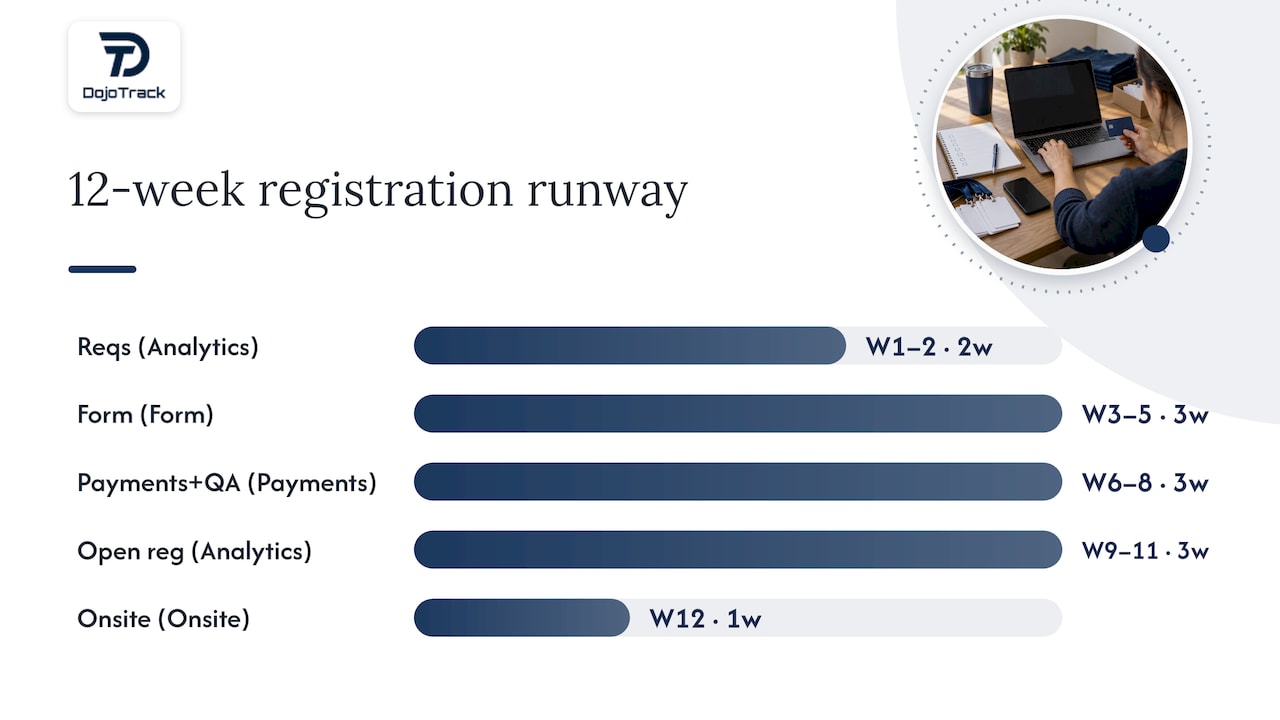
A 12-week runway gives most teams enough room: weeks 1 to 2 for requirements and data model, weeks 3 to 5 for form and ticket build, weeks 6 to 7 for payment and approval testing, week 8 for a full QA pass, weeks 9 to 11 open for registration and reminders, and week 12 for onsite prep and badge printing. Assign one owner per stage using a simple RACI: someone accountable for the form, someone for payments, someone for onsite, and someone for post-event analytics, so no stage is “everyone’s job,” which usually means it’s no one’s.
Pro Tip: Assign the same person to build the form and test it. Whoever writes the conditional logic knows exactly where it’s likely to break.
Applied workflow example and templates
A seminar registration for a martial arts school follows the same six stages, with a few studio-specific twists. Requirements gathering has to account for family accounts sharing a login, belt level determining seminar eligibility, and a digital waiver that must be signed before payment. The form asks for student name, current belt, and emergency contact, then branches into add-ons like gear rental only if the student selects them.
Payment ties to the family’s existing billing profile where one exists, confirmation includes the waiver receipt and a QR code, and check-in scans against the same roster the front desk uses for daily attendance. DojoTrack’s own martial arts event registration guide and seminar registration workflow template walk through this build in more detail, and the tournament registration guide covers the higher-complexity version with divisions and weigh-ins.
Practical perspective: common mistakes event teams make
Most teams cut data questions first when completion drops, but the research points the other way: ticket complexity is the real problem, not the form. Simplify choices before you simplify data collection. The second fix costs nothing and prevents most onsite failures: name one owner per stage. Registrations, payments, onsite, and analytics each need someone accountable, or gaps between stages go unnoticed until an attendee is standing at the door.
How DojoTrack helps automate registration workflows
Building this workflow by hand across five different tools is exactly the kind of administrative overhead martial arts schools tell us they want off their plate. DojoTrack handles event registration alongside the billing, waivers, and communication your studio already runs on, so a seminar or tournament signup connects directly to family accounts, digital waivers, Stripe-powered payments, and automated email and SMS reminders instead of living in a separate spreadsheet.
Studios can start on the Free plan and unlock automation as registration needs grow, or explore the full platform to see how check-in and analytics tie back to the same student records. Switching from another system? The data migration service moves your existing rosters over without starting from scratch.
Sources
- How to Build an Event Registration Process (Step by Step)
- Event Data Lab reporting and synthesis
- Manage webinar registration in Microsoft Teams
- CiviCRM: Online event registration
FAQ
What are the four types of workflows?
Definitions vary across industries, but for event registration specifically, the practical stages worth tracking as distinct workflows are requirements and data setup, form and ticket selection, payment and approval, and confirmation through onsite check-in. Some teams add post-event analytics as a fifth stage rather than folding it into check-in.
What is the best way to register people for an event?
The most reliable approach maps every stage from requirements through post-event analytics, assigns an owner to each one, and tests the full path, including failed payments and waitlist movement, before opening registration publicly. Keeping ticket choices simple matters more for completion than trimming data fields, according to PheedLoop’s Event Data Lab.
What is the best software for event registration?
The right choice depends on the event type: general-purpose platforms and native tools like Microsoft Teams work well for webinars, while niche software fits better for industry-specific events with family accounts or credential tracking. Martial arts schools running seminars or tournaments can use DojoTrack, which ties registration directly to student records, waivers, and billing already on the platform.
What Microsoft tool can I use for event registration?
Microsoft Teams includes built-in webinar registration settings that support capacity limits, manual approval, waitlists, and custom fields. Organizers can also restrict the registration window so it closes before the event itself, which is useful for any preparation that requires a locked attendee list.