
Push Notification Schedule for Class Apps: Avoid 2 AM Alerts

The fastest path to stronger engagement is a timezone-aware push notification schedule that pairs conservative frequency with real personalization. On iOS, that means UNCalendarNotificationTrigger for recurring reminders. On Android, it means setting the right FCM priority for each message type. Across platforms, server-side scheduling plus small experiments beats guessing at a universal “best time.”
TL;DR:
- Use local triggers only for reminders at fixed times; location, activity, or account based scheduling requires a server and each user’s current timezone.
- On Android, high priority suits urgent alerts, while normal priority may wait during Doze; move image downloads and data updates to WorkManager.
- Measure engagement over 24 hours alongside opens and clicks, while tracking alert disabling and uninstalls; immediate click gains do not justify increased attrition.
- Class apps can send three reminders before each session: one 48 hours ahead, one 24 hours ahead, and one hour ahead.
Table of Contents
- Choosing the right scheduling primitive for your app
- How to schedule notifications on iOS, Android, and the web
- Personalizing send times instead of guessing
- Testing your schedule and measuring what matters
- Scheduling patterns we use for class and membership apps
- What most scheduling advice gets wrong
- DojoTrack: built-in scheduling for martial arts studios
- FAQ
- Sources
Choosing the right scheduling primitive for your app
Before you write a single send rule, you need to pick the mechanism that matches your use case. Three options cover most apps.
- Calendar triggers fire at a specific date and time, ideal for recurring events like a weekly class reminder or a billing due date.
- Interval triggers fire after a fixed elapsed time, useful for onboarding sequences or “come back in 3 days” nudges.
- Server-scheduled campaigns let your backend decide send time per user, which is the only practical option when you need timezone awareness or behavioral targeting at scale.
Local, on-device scheduling works well when the trigger depends only on time, not on fresh server data, such as a daily practice reminder set once and left alone. Server-side scheduling becomes necessary the moment you want to adjust send time based on a user’s location, activity pattern, or account status, since the device cannot know what your backend knows.
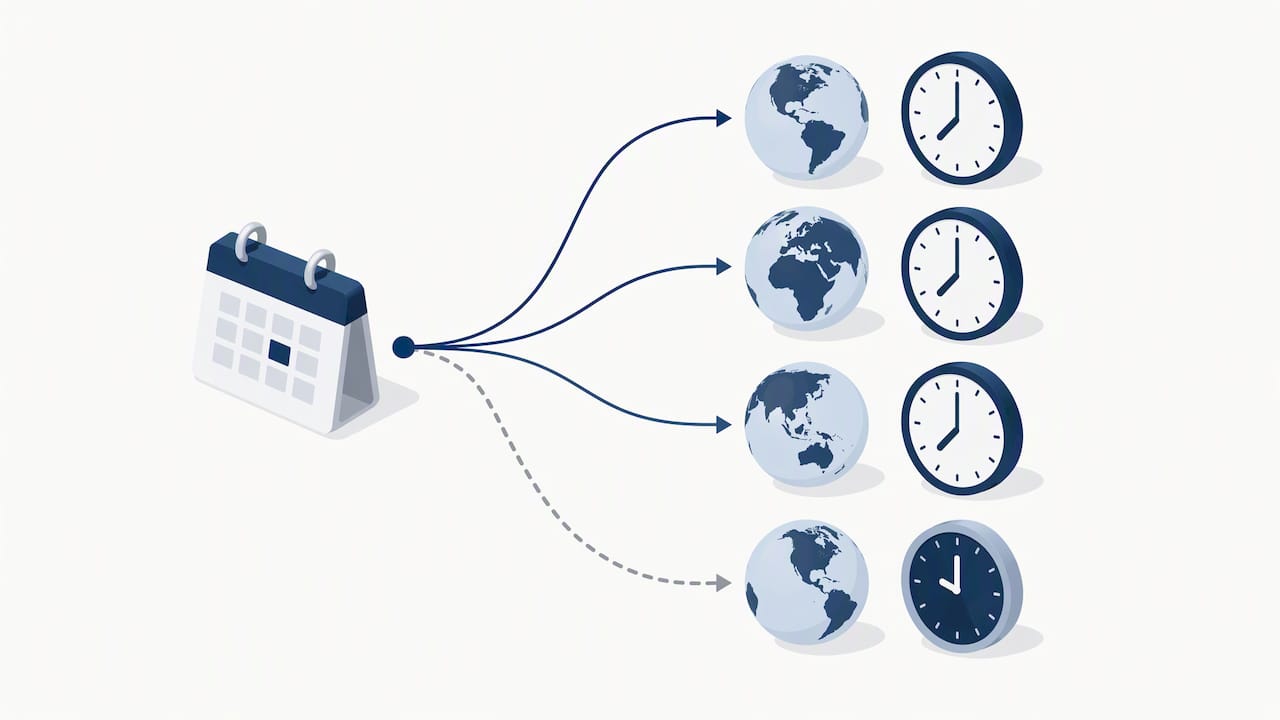
Timezone-aware delivery deserves special attention. If your user base spans multiple regions, storing each user’s local timezone and mapping every scheduled send to that local time prevents the common failure of a 7:00 AM reminder landing at 2:00 AM for someone three time zones away. This single fix often does more for opt-out rates than any copy change.
How to schedule notifications on iOS, Android, and the web
Each platform handles scheduling differently, and the gotchas differ too.
- On iOS, use
UNCalendarNotificationTriggerfor notifications tied to a specific date and time, and setrepeatstotruefor anything recurring, since Apple’s developer documentation confirms the system automatically reschedules the trigger after each delivery. - On Android, choose FCM message priority deliberately: high priority attempts immediate delivery and is appropriate for time-sensitive alerts, while normal priority may be delayed when a device enters Doze mode, so reserve it for non-urgent content.
- Keep
onMessageReceivedlightweight on Android and offload heavier work, like fetching an image or updating local data, to WorkManager rather than blocking the main delivery path. - On the web, gate your permission prompt behind a clear user action instead of firing it on page load, since the Web Push API best practices from MDN recommend asking only after the user has interacted with your app and understands the value of saying yes.
Pro Tip: Test your schedule across a daylight saving time transition before launch. Calendar triggers tied to local time can drift by an hour if your app does not recompute the offset.
Common failure points include notifications silently disabled at the OS level, battery optimization settings suppressing delivery on Android, and daylight saving shifts throwing off recurring reminders that were hardcoded rather than recalculated.
Personalizing send times instead of guessing
A single blanket send time ignores the fact that your users keep different schedules. Heuristics get you most of the way: a lunch window around midday, an evening window after typical work hours, and shifted timing on weekends when routines change.
To go further, collect a small set of per-user signals:
- Local timezone, updated whenever the device reports a change.
- Last app open and typical session times, to infer an active window.
- Explicit preferences, when you offer users a choice of quiet hours.
A microrandomized trial published in JMIR mHealth found that tailored push messages increased next-24-hour engagement by a small but measurable amount, with larger effects at midday and on weekends. That gap between a generic send and a tailored one is exactly what per-user signals are meant to close.
More advanced teams run microrandomized trials or causal machine learning models to predict an individual’s best send window, but this level of investment only pays off once you have enough volume and engineering capacity to act on the output. For most apps, heuristics plus a timezone fix capture most of the available lift. Whatever method you choose, default to conservative frequency. Sending more than the moment calls for burns trust faster than it builds engagement, and opt-outs are hard to reverse.
Testing your schedule and measuring what matters
Guessing at timing is optional once you have a testing plan. Here is a simple sequence that works for most teams.
- Start with a basic A/B test comparing two fixed send times across a representative user segment.
- Graduate to a microrandomized trial when you want to test timing at the individual level rather than the cohort level, since research on screen-on timing suggests a modest one to six minute delay after screen-on sometimes outperforms immediate delivery.
- Track immediate open and click rates, but weight next-24-hour engagement more heavily since it reflects whether the notification actually changed behavior rather than just interrupted it.
- Watch opt-outs and uninstalls as a counterbalance. A send time that lifts short-term clicks while nudging up opt-outs is not a win.
Apply a multiple-testing correction when you are running several timing variants at once, and check for heterogeneity across user segments since an effect that looks flat overall can hide a strong result in one subgroup and a negative one in another. Build a simple dashboard that flags rising opt-out rates before they become a retention problem.
Scheduling patterns we use for class and membership apps
Class-based and membership apps have a natural rhythm, and we have found that matching notification timing to that rhythm matters more than chasing a universal optimal hour. A three-message cadence, sent 48 hours, 24 hours, and 1 hour before a scheduled class, covers most reminder needs without overwhelming a student’s inbox.
- Attendance nudges work best sent within a few hours of a missed class, not days later.
- Billing reminders land better earlier in the day, before a student’s schedule fills up.
- A preference center that lets students opt down to fewer alerts, rather than opting out entirely, preserves the relationship.
For more copyable templates by goal and audience, our push notification ideas library breaks down examples by use case.
What most scheduling advice gets wrong
Most guidance on notification timing treats send time as the main lever, when frequency and relevance usually matter more. A perfectly timed notification with nothing useful to say still gets muted. We would rather see teams nail the timezone basics, keep frequency conservative, and spend their remaining effort on message relevance rather than chasing a theoretical best minute.
Three steps cover most of the ground: make every send timezone-aware, run one small experiment on frequency or time-of-day before scaling anything, and give users a visible way to control what they receive. Balance the short-term lift from a well-timed send against the long-term cost of a user who mutes you for good.
— DojoTrack
DojoTrack: built-in scheduling for martial arts studios
Building and testing a push notification schedule from scratch takes real engineering time, time most studio owners would rather spend on the mat than in a notifications console. Our student mobile app handles class reminders, attendance nudges, and billing alerts with scheduling already built in, so you get timing patterns covered above without writing a line of code.
- Pre-built reminder cadences for classes, attendance, and billing.
- A student-facing preference center to reduce opt-outs.
- Automated triggers tied to milestones like belt progress and renewal dates.
- Migration support if you are moving from another studio management platform.
If you manage class schedules and want this handled for you, our pricing page outlines the Free, Launch, Scale, Expand, Grow, and Master plans, or you can explore the full platform directly at App.
If you are planning a broader software rollout beyond notifications, Fitness Flow’s implementation playbook is a useful reference for sequencing a studio-wide software switch.
FAQ
Can you set a schedule for notifications on an iPhone?
Yes, iOS apps schedule local notifications using UNCalendarNotificationTrigger for a specific date and time, and developers can set repeats to true so the system automatically reschedules recurring alerts, according to Apple’s developer documentation.
Where do I find my push notifications?
Push notifications appear in your device’s notification center or lock screen, and you can review notification history and permissions in your phone’s system settings under the specific app’s entry. On the web, browser-level settings control which sites have permission to send push alerts.
How do I automate push notifications?
Automated push notifications are typically triggered by user actions or milestones, such as a missed class or an upcoming renewal, through server-side scheduling connected to your app’s backend. Many studio and membership apps, including ours, include automated reminder sequences so you do not need to build the logic yourself.
Is there a difference between notifications and push notifications?
Notifications is the broader term covering any alert a device displays, including local reminders set entirely on-device. Push notifications specifically originate from a remote server and are delivered to the device even when the app is closed, which is why they rely on services like FCM or Apple’s push service.
Sources
- Scheduling a notification locally from your app — Apple Developer
- Web Push API notifications best practices — MDN
- Microrandomized trial evidence on push notifications and engagement — JMIR mHealth (2018)
- Timing and screen-on effects on notification engagement — SSRN (2026)