
Stop Missed Bookings: Fix Google Calendar Sync on Devices for Studios
The fastest fix is to install the Google Calendar app (or add your Google account directly in your device’s calendar settings) and turn on calendar sync for that account. This gives you live, two-way syncing: changes made anywhere show up everywhere, unlike an imported or read-only calendar file, which only reflects a single moment in time. If events still don’t appear after that, the troubleshooting checklist below covers the most common causes.
TL;DR:
- Ensure the Google Calendar app is installed, signed in with the correct account, and the calendar sync toggle is enabled at both account and individual calendar levels.
- On iOS devices, choose between installing the Google Calendar app for full features or adding the account to Apple’s Calendar, noting some features only work in the app.
- Desktop integrations rely on account sign-in for two-way sync or subscription links for read-only views; imports do not support ongoing updates.
- Sharing calendars directly provides live updates for collaborators, while exporting and importing create static copies that do not reflect future changes.
- Troubleshooting often resolves to verifying sync settings, refreshing the app, updating software, or checking Google’s web version before considering support.
Table of Contents
- How to sync Google Calendar on Android
- How to sync Google Calendar on iPhone and iPad
- Syncing with desktop programs and other calendar apps
- Sharing calendars versus exporting and importing them
- Why events don’t appear and how to force a sync
- How studios and appointment-based businesses apply this
- Where to start when sync breaks
- A centralized option for studios juggling multiple calendars
- FAQ
- Sources
- Official help and developer documentation
How to sync Google Calendar on Android
Android devices sync best when you use the Google Calendar app directly, since it is built for two-way updates between your phone and your Google account.
- Install Google Calendar from the Play Store and sign in with the account that holds your events.
- Go to device Settings > Accounts > Google, tap your account, and confirm Calendar is toggled on under account sync.
- Open Google Calendar, tap Menu > Settings, select the calendar in question, and make sure Sync is enabled.
- If events are missing, pull down to refresh or use the manual sync option inside account settings.
One quirk worth knowing: the Android app only syncs past events up to a limited recent period, so older entries won’t show on your phone even when they still exist in your account. You’ll need calendar.google.com on a browser to view anything further back. Menu layouts also vary slightly by phone manufacturer, so the exact tap sequence may differ on a Samsung versus a Pixel.
Pro Tip: Being signed into your Google account doesn’t guarantee every calendar syncs. Check the per-calendar Sync toggle separately, since it’s a common reason a secondary calendar goes missing.
How to sync Google Calendar on iPhone and iPad
iOS gives you two real options, and which one you pick changes what features you get.
- Install the Google Calendar app and sign in for the full Google experience, including notifications, color coding, and event details that match the web version.
- Or add your Google account under Settings > Calendar > Accounts > Add Account > Google, which pulls your events into Apple’s native Calendar app instead.
- If you use Apple Calendar, set how often it checks for updates under account settings since it doesn’t refresh instantly by default.
- Use Google’s calendar sync settings page to choose exactly which calendars publish to your devices, especially if you manage more than one.
Keep in mind that some Google Calendar features don’t carry over when you go the Apple Calendar route. Google’s own documentation notes that email notifications for events, creating new Google calendars, and the room scheduler simply won’t work inside Apple’s app. If you rely on those features, the Google Calendar app is the better pick.
Syncing with desktop programs and other calendar apps
On a computer, you generally have three ways to connect Google Calendar to another program, and each one behaves differently.
- Account sign-in (Sign in with Google) gives you two-way editing where the app supports it, so changes flow both directions.
- iCal subscription using your calendar’s secret address gives you a live, read-only feed, which is ideal when you want visibility without edit access.
- Import (.ics or .csv) moves events over as a one-time copy, useful for migrations but not for ongoing updates.
Google’s own guidance confirms that the secret iCal address keeps updating automatically, but warns you to keep it private since anyone with the link can view your calendar. Imported events never reconnect to the source calendar once brought in, according to Google’s Import & Export documentation, which is the single biggest misunderstanding we see when studios try to merge schedules across tools.
For Outlook, add the account directly for two-way sync or subscribe to the iCal link for a read-only view. For Apple Calendar, the same two options apply: account sign-in for editing, iCal subscription for viewing only.
Sharing calendars versus exporting and importing them
If you want ongoing access to someone else’s calendar, sharing beats exporting every time.
- Open Settings > Share with specific people on the calendar you want others to see, and add their email address with the right permission level.
- Reserve export and import for one-time moves only, like consolidating an old account into a new one.
- Remember that imported events are static copies: edits to the original calendar afterward won’t appear on the imported version.
- If migration is your goal, export the .ics file first, then import it into the destination account as a one-time step, not an ongoing sync method.
Why events don’t appear and how to force a sync
Most sync problems come down to one of a handful of settings, checked in this order.
- Confirm Calendar is enabled under your device’s account-level sync settings, not just inside the Calendar app itself.
- Check the per-calendar Sync toggle inside Google Calendar’s settings for that specific calendar.
- Manually refresh from within the app, update the app to its latest version, and confirm your device has enough free storage.
- Restart the device if the app is updated and synced but still showing stale data.
- For history beyond the Android app’s roughly one-year window, check calendar.google.com directly in a browser.
Google’s troubleshooting steps note that some fixes apply only to Android 9.0 and later, and manufacturer-specific settings menus can shift the exact path slightly. Clearing app data is a last resort: it can wipe local-only events that never made it to your account, so export anything unsynced first.
Pro Tip: When in doubt, check calendar.google.com on the web before assuming an event is gone. The web version often has data the mobile app hasn’t caught up to yet.
How studios and appointment-based businesses apply this
Class-based and appointment-driven businesses run into sync issues constantly, usually because staff are each managing their own calendar copies instead of pulling from one source.
- Keep a single master schedule owned by the business account, then share it with staff so everyone sees live updates instead of a static copy.
- Use shared calendars or account-based subscriptions for students and staff. Avoid handing out imported files, since those stop updating the moment they’re created.
- Send calendar invites for bookings so attendees get automatic updates if a class time changes.
- Pair calendar notifications with push reminders so people get a nudge through more than one channel.
Studios managing several instructor calendars at once often benefit from a dedicated approach to multiple class schedules rather than stitching together individual Google accounts by hand.
Where to start when sync breaks
My priority order is always the same: sign in first, confirm account-level sync is on, check calendar visibility inside the app, then move to sharing a master calendar once the basics work. If a calendar is missing after all of that, the issue is usually on Google’s side (contact Google support), but if an app won’t display synced events correctly, that’s a job for the app’s own support team. Always export anything unsynced before clearing app data.
— DojoTrack
A centralized option for studios juggling multiple calendars
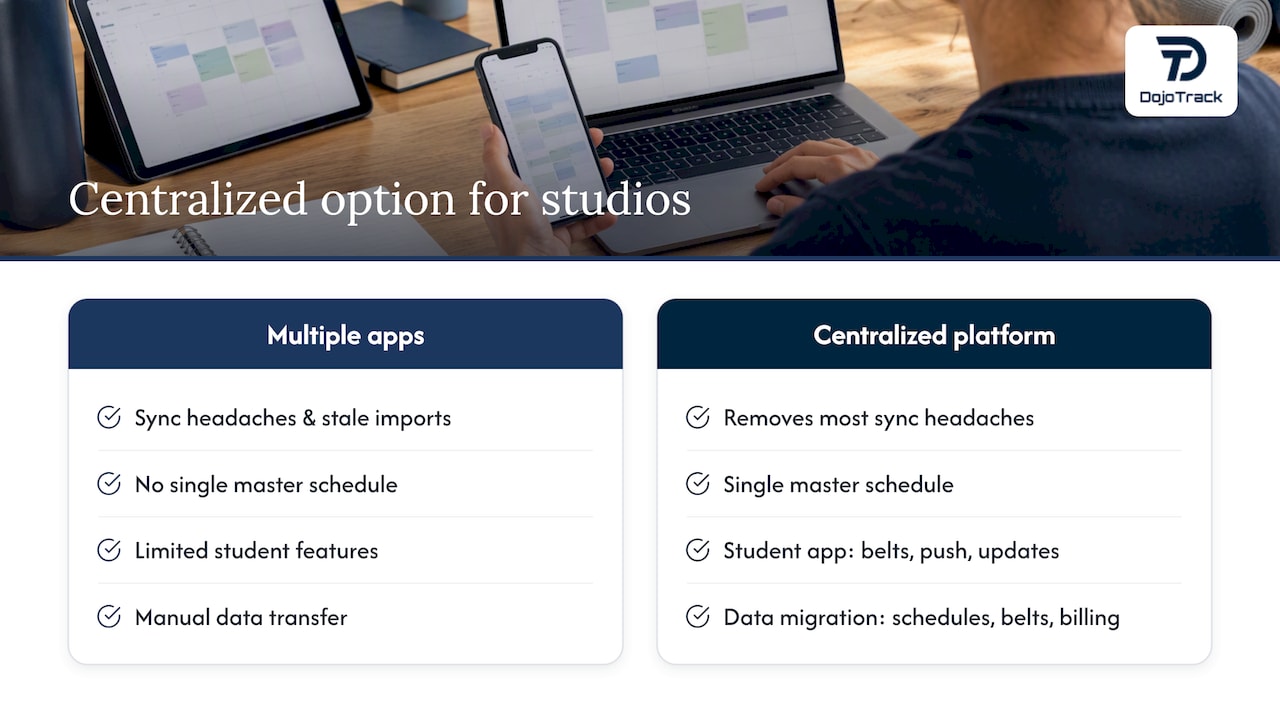
If your studio is piecing together instructor calendars, student reminders, and class schedules across several apps, centralizing that into one system removes most sync headaches before they start with an all-in-one gym management software like Fitness Flow. We built DojoTrack around a single master schedule that staff and students pull from directly, with a student app for belt progress, push notifications, and class updates, so nobody’s relying on a stale imported file. Our data migration tools carry over your existing schedule, belt records, and billing history when you switch over. Plans range from a free core tier up to advanced automation on our pricing page, or you can see the full platform at App.
FAQ
Why isn’t my Google Calendar syncing across devices?
The most common cause is a sync setting disabled at either the account level or the individual calendar level, so check both Settings > Accounts > Google and the per-calendar Sync toggle inside the app. An outdated app version or low device storage can also block updates from coming through.
How do I force Google Calendar to sync?
Open the Google Calendar app and manually refresh, or toggle the account’s Calendar sync off and back on in device settings. If that doesn’t work, confirm the app is updated and restart the device, since a stuck background process is a common culprit.
Why aren’t all my calendars showing up in Google Calendar?
Each calendar has its own Sync toggle inside the app’s settings, separate from your overall account sync, so a secondary or shared calendar can stay hidden even while you’re signed in. Visit Google’s sync settings page to review and enable every calendar you want visible.
Can I sync one Google Calendar with another?
Direct calendar-to-calendar syncing isn’t built in, but you can share a calendar with another account to keep both views live and current. Importing one calendar into another only creates a one-time copy that stops updating immediately, according to Google’s own documentation.
Official help and developer documentation
For setup and troubleshooting beyond this guide, Google’s own support pages and developer docs cover platform-specific steps and programmatic sync limits in more depth.