

Start with role-based access control: build named permission sets like Instructor, Front Desk, and Manager before you touch a single staff profile. Enable “can log in” on every staff account first, since roles won’t apply to accounts without login access turned on. Assign the smallest set of permissions each person needs to do their job, then test each role with a dummy account before you trust it with real data.
TL;DR:
- Assign login access to all staff accounts before creating and testing roles to ensure permissions are correctly applied and functional.
- Use role templates based on specific tasks like attendance or billing rather than job titles to simplify updates and reduce complexity.
- Limit full administrative access to owners and trusted managers to prevent accidental overreach and protect sensitive settings.
- Test each role thoroughly through actual workflows to confirm permissions behave as intended and document all changes for accountability.
- Regularly verify permissions with audit logs after setup, especially before high-traffic shifts, to catch and fix any misconfigurations early.
Table of Contents
- How to Set Staff Permissions Step by Step
- Design Roles as Access Profiles, Not Job Titles
- What Are the Three Types of Staff Permissions?
- Administrator Checklist for Rollout
- DojoTrack’s Approach to Staff Roles at Martial Arts Studios
- Why Permissions Don’t Apply and How to Verify Them
- An Operator’s Take on Getting Permissions Right
- Get Staff Permissions Right With DojoTrack
- Sources
- FAQ
How to Set Staff Permissions Step by Step
A clean staff permissions setup follows a specific order. Skip a step and you’ll spend the next month fixing access requests instead of running your business.
Before you touch anything:
- Build a quick inventory of every staff member and what they actually do day to day.
- Pick one owner per role category (front desk, instruction, management) who can confirm what that role should and shouldn’t touch.
- Back up your current settings if your platform allows exporting a permissions snapshot.
Then work through this sequence:
- Create role templates by function, not by job title. Group permissions around tasks: attendance, billing, scheduling, reporting.
- Enable login access for every staff account first. Platforms often won’t apply a role’s permissions until the account itself has login rights turned on, and creating accounts for staff who don’t have one yet belongs in this step, not later.
- Assign roles to each staff profile, scoping by location or module if your software supports multi-site management.
- Test every role using a non-admin test account. Walk through the workflows that actually matter: a student check-in, a billing update, a report pull.
- Document what you changed and notify affected staff before their next shift.
- Schedule a quick re-login so the new permissions take effect across devices and kiosk stations.
Most help centers describe this exact sequence: create or edit a role, select permissions, scope to a location, save, then assign it to staff. TouchBistro’s staff permissions documentation lays this out clearly, including how Full Access and protected built-in roles behave differently from the custom roles you build yourself.
Design Roles as Access Profiles, Not Job Titles
The biggest mistake in staff role assignment is naming a role after a person’s title instead of what they need to access. “Front Desk Manager” sounds specific, but it tells the system nothing about whether that person should see refund tools or payroll reports.
Treat “Role” as an access profile, separate from job title entirely. When a policy changes (say, front desk staff now need to view class rosters), you update one profile instead of hunting through five job titles that happen to overlap. WorkOS’s guidance on RBAC makes this point directly: separating access from title cuts down on the friction every time your business rules shift.
Sample templates that work well for most studios and membership businesses:
- Instructor: attendance tracking, student profile viewing, no billing or settings access.
- Front Desk: check-in, payment processing, waiver collection, no reporting or system settings.
- Manager: scheduling, reports, limited billing access, no full system administration.
Full Access should stay reserved for owners only. It’s the one role that touches billing settings, integrations, and every location at once, so protect that login with a strong password and don’t share it as a shortcut for convenience.
Some staff cross modules. A head instructor who also handles the front desk on weekends should get two smaller roles combined, not one bloated role built from scratch.
Pro Tip: Build permission fragments first, like “Report Viewer” or “Refunds,” then combine them into named roles. Small, reusable pieces are far easier to audit than one giant role nobody remembers the full scope of.
What Are the Three Types of Staff Permissions?
Most platforms boil access down to three permission types: read (view only), write (create or modify), and admin (manage settings and other users). Understanding which type applies to which feature is the core of any user access configuration.
Common permission groups you’ll configure across nearly any membership or studio platform include:
- Point-of-sale and payment processing
- Scheduling and class management
- Attendance tracking
- Reports and analytics
- System settings and integrations
A read permission on reports lets a manager see revenue trends without editing anything. A write permission on scheduling lets front desk staff move a class time. An admin permission on user management lets someone add or remove other staff accounts entirely, which is why that flag belongs to very few people.
Full Access and “manage users & roles” sit above all three types as system-level flags. Many platforms also scope permissions to a specific location, so a manager at one branch doesn’t accidentally see payroll data from another. Establishing role-based access control by mapping named permission sets to actual users is standard practice in modern CRMs, according to Rippling’s breakdown of RBAC, precisely because it scales cleanly as staff counts grow.
Administrator Checklist for Rollout
A full staff permissions setup takes less time than most admins expect once you break it into stages.
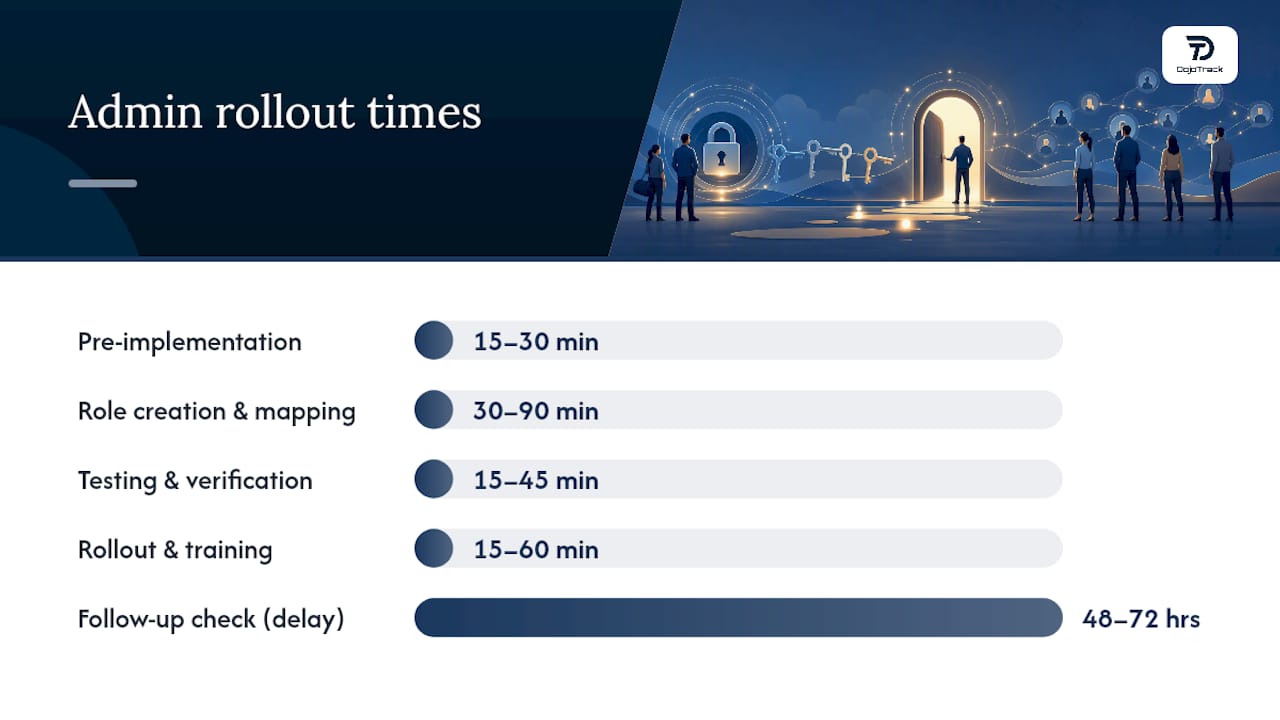
- Pre-implementation (15 to 30 minutes): Back up current settings, inventory your staff list, and assign an owner to each role category.
- Role creation and mapping (30 to 90 minutes): Build your templates and map each staff profile to the right one. Complexity depends on how many locations or modules you run.
- Testing and verification (15 to 45 minutes): Run a test account through check-in, billing, and reporting to confirm each role behaves as intended.
- Rollout and training (15 to 60 minutes): Notify staff, walk them through any login changes, and answer questions before their next shift.
- Follow-up check (48 to 72 hours later): Confirm nobody hit a wall trying to do their job, and adjust any role that’s too tight or too loose.
Schedule the actual role changes during low-traffic hours. Switching permissions mid-shift on a busy Saturday morning is how you end up with a front desk staffer locked out of the payment screen while three people are waiting to check in.
Pro Tip: Keep a printed or shared-doc copy of your role map during rollout week. When someone asks “why can’t I see this,” you want the answer in ten seconds, not a support ticket.
DojoTrack’s Approach to Staff Roles at Martial Arts Studios
Running a martial arts school surfaces permission needs that generic business software doesn’t anticipate. DojoTrack’s founder built the platform after running studios himself and hitting the same access headaches most owners eventually face: instructors who needed attendance access but nothing near billing, and front desk staff who needed check-in tools but no reason to see payroll.
Typical martial arts studio management software maps this directly into role templates such as:
- Instructor: attendance logging, belt promotion tracking, limited student profile access.
- Front Desk: payment processing, check-in, digital waiver collection.
- Manager: scheduling, reporting, and scoped billing without full system control.
For studios running multiple locations, scoping roles by location keeps a manager at one branch from touching another branch’s numbers. When a one-off task comes up, like processing a refund or running payroll during a manager’s absence, a temporary elevated role works better than permanently widening someone’s access. Grant it, complete the task, then revert.
Keep your role-to-task mapping in one shared document, and build the habit of deprovisioning access the same day someone leaves. DojoTrack’s staff management guide walks through more of these studio-specific templates in detail.
Why Permissions Don’t Apply and How to Verify Them
The most common pitfall in any staff permissions setup: the account’s login checkbox was never enabled. Roles simply won’t take effect on an account that can’t log in, so this step has to come before role assignment, not after.
Once you’ve confirmed login access, verify changes properly:
- Check audit logs to confirm who changed a role and when.
- Watch for failed-save or dependency warnings when you assign a role, since some platforms block conflicting permission combinations silently.
- Use a temporary role pattern for one-off elevated access: create it, assign it, complete the task, then revert immediately.
Run this quick workflow check after any change: a test check-in, a new membership purchase, a refund attempt, and a report pull. If all four work as expected for the right role and fail correctly for the wrong one, your setup is solid. A quick test-account pass and a look at the audit log catch most misconfigurations before a real customer ever notices.
An Operator’s Take on Getting Permissions Right
Correct staff permissions setup isn’t paperwork, it’s revenue protection. A front desk staffer with accidental refund access, or an instructor who can edit billing, is how small errors turn into real losses. Balance convenience against risk with temporary elevation and regular audits, not permanent shortcuts. Use studio-specific templates for staff roles as a starting point rather than building from a blank slate.
— DojoTrack
Get Staff Permissions Right With DojoTrack
DojoTrack gives martial arts studio owners a faster path to correct staff permissions than building custom roles from scratch in generic business software. The platform ships with instructor, front desk, and manager templates already scoped to what a martial arts business actually runs: attendance, belt promotions, check-in, and billing, each locked down to the role that needs it. Multi-location scoping and audit logs come built in, so you’re not stitching together workarounds to see who changed what.
The free core tier lets you set up staff accounts and roles without paying anything upfront, with automation and deeper analytics available as you grow. Check out the full feature set to see how permissions fit alongside billing, attendance, and student tracking, then create your DojoTrack account and start assigning role templates today.
Sources
This guide draws on platform documentation from Rippling, WorkOS, TouchBistro, and Square, along with implementation checklists from FITsociety.
- How to Edit or Add Roles with Staff Permissions — TouchBistro Help
FAQ
What are the three types of permissions?
Most platforms use three permission types: read (view only), write (create or edit), and admin (manage settings and other users). Which type applies to which feature depends on the permission group, such as billing, scheduling, or reporting.
How do I turn on permission settings for a new staff account?
Enable “can log in” on the staff profile first. Roles and permission sets won’t take effect until login access is active, so this step has to happen before you assign any role.
How do I set admin user permissions?
Reserve Full Access or admin-level permissions for owners and a small number of trusted managers, since this level typically controls billing settings, integrations, and user management across every location. Assign it through a dedicated custom role rather than editing a protected system role.
Can I assign a permission set to a staff profile?
Yes. Once you’ve built a permission set or role template, most platforms let you assign it directly to a staff profile, and many support scoping that assignment to a specific location or module.